
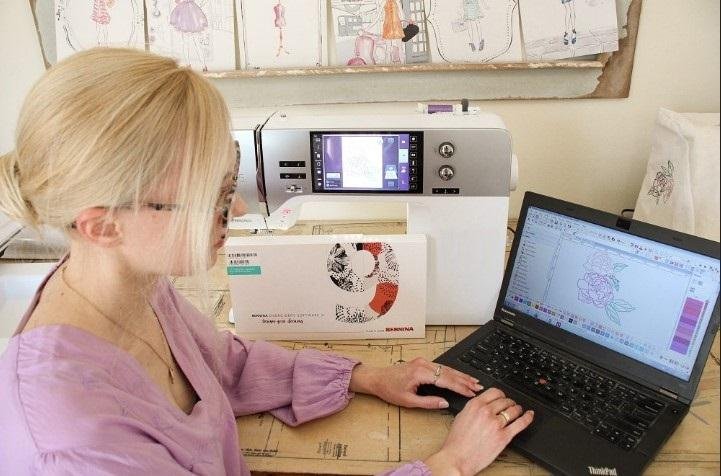
Embroidery is not the same as printing. A JPG file is a picture. It shows color and shape. But an embroidery machine does not read pictures. It reads stitch data. That is why many people feel stuck when they try to use a JPG logo on their machine.
If you want to Convert JPG to EXP, you must digitize the design first. EXP is a stitch file used by Melco and some Bernina machines. It tells the machine where to stitch, when to trim, and how to move. You cannot just change the file name. You must create stitch paths with care.
In this guide, I will explain the full process step by step. I will also share tips from real work. I have worked on many logo files. I have seen what works and what fails. This guide will help you avoid common mistakes.
What Is an EXP File?
An EXP file is a stitch format. It stores needle moves. It does not store image data like JPG.
What EXP Files Contain
-
Stitch points
-
Color change stops
-
Trim commands
-
Machine path
It is simple but powerful. If the stitch path is wrong, the design will look bad on fabric.
Why You Cannot Directly Use a JPG File
Many new users think they can upload a JPG to their machine. That does not work.
JPG Is a Raster Image
A JPG is made of pixels. It does not tell the machine how to stitch.
Machines Need Stitch Data
The machine needs:
-
Stitch type
-
Stitch order
-
Stitch density
-
Direction
This data comes from digitizing software.
What Is Digitizing?
Digitizing is the process of turning an image into stitch commands.
It is not auto magic. It is manual work. Even when software has auto tools, manual control gives better results.
I learned this the hard way. In my early work, I used auto settings. The design looked fine on screen. But it puckered on fabric. After that, I started adjusting each stitch type by hand.
That is when quality improved.
Tools You Need to Convert JPG to EXP
Before we start, make sure you have the right tools.
Digitizing Software
Examples include:
-
Wilcom
-
Hatch
-
Pulse
-
Bernina software
Free tools exist. But for clean work, full control is better.
A Clear JPG Image
Use a high-quality image. Avoid blur and shadows.
Test Fabric and Stabilizer
Always test before final use.
Step-by-Step Guide to Digitize and Convert JPG to EXP
Now let us break it down into simple steps.
Step 1: Choose a Clean and Simple JPG
The better your image, the better your stitch.
Image Tips
-
Use bold shapes
-
Avoid tiny text
-
Use solid colors
-
Keep clean edges
Simple logos work best.
Step 2: Import JPG into Digitizing Software
Open your software. Import the JPG file.
Do not resize too much at this stage. Set the correct size based on your final use.
Step 3: Trace the Design Manually
This is the most important step.
Do not rely only on auto-digitization.
Use Manual Tools
-
Satin tool for text
-
Fill tool for large shapes
-
Run stitch for outlines
Click and trace each shape carefully.
Step 4: Choose the Right Stitch Type
Not all shapes need the same stitch.
Satin Stitch
-
Best for letters
-
Good for borders
-
Clean and smooth
Avoid very wide satin areas. They may snag.
Fill Stitch
-
Best for large areas
-
Strong and stable
Set proper density to avoid puckering.
Run Stitch
-
Best for fine lines
-
Good for light detail
Keep stitch length balanced.
Step 5: Set Stitch Density
Density controls how tight the stitches are.
Too tight:
-
Fabric pulls
-
Design shrinks
Too loose:
-
Gaps appear
-
Design looks weak
Test and adjust based on fabric type.
Step 6: Add Underlay
Underlay is the hidden base stitch.
It helps:
-
Hold fabric
-
Support top stitches
-
Reduce sinking
Common types include edge run and zigzag. Use the one that fits your design.
Skipping underlay is a big mistake.
Step 7: Adjust Push and Pull Compensation
Fabric moves during stitching. Stitches push and pull fabric.
Push and pull settings fix this issue.
If your circle becomes oval after stitching, you need better compensation.
This setting depends on:
-
Fabric type
-
Stitch type
-
Design size
Test on scrap fabric first.
Step 8: Set the Stitch Order
Stitch order matters a lot.
Good stitch order:
-
Reduces trims
-
Reduces jumps
-
Improves clean finish
Start from inside. Move outward. Plan the path smartly.
Step 9: Preview the Design
Most software has a stitch simulator.
Watch it carefully.
Check for:
-
Too many trims
-
Long jump stitches
-
Uneven stitch flow
Fix issues before export.
Step 10: Export the File as EXP
Once all settings are correct, export the design.
Choose EXP format from the save options.
Name the file clearly.
Now your file is ready for test stitching.
Test Stitch Is a Must
Never skip testing.
Even experts test every new design.
How to Test Properly
-
Use the same fabric type
-
Use correct stabilizer
-
Use same hoop size
Check the result closely.
Look for:
-
Puckering
-
Gaps
-
Thread breaks
-
Shape distortion
Make changes if needed. Then test again.
Common Mistakes When Converting JPG to EXP
I see these mistakes often.
Using Low-Quality Images
Blurry JPG files create guesswork. Guesswork leads to bad stitches.
Overlapping Too Much
Too much overlap makes thick areas. Thick areas cause puckering.
Ignoring Fabric Type
Denim is not the same as jersey.
Stretch fabric needs more care.
Making Text Too Small
Very small letters do not stitch well.
Keep text above safe size.
Fabric and Stabilizer Matter
Even perfect digitizing can fail on the wrong fabric setup.
Stable Fabrics
-
Cotton
-
Canvas
-
Denim
Easy to handle.
Stretch Fabrics
-
T-shirts
-
Polo shirts
Use cut-away stabilizer for support.
Why Professional Digitizing Makes a Big Difference
Digitizing is both art and skill.
It takes time to master stitch flow, density, and fabric behavior.
Embroidery Digitizing Services in USA - Digitizing Buddy works with many file types, including EXP. They test files before delivery. They adjust stitch settings based on fabric type.
This reduces thread breaks and distortion.
They also offer revisions if needed. This builds trust and long-term value.
Experience-Based Tips for Better Results
Here are tips from real projects.
Keep Designs Simple
Simple designs stitch better and last longer.
Avoid Too Many Colors
Each color adds a stop. Too many stops increase time and risk.
Use Quality Thread
Cheap thread breaks easily.
Maintain Your Machine
Clean and oil your machine on time.
How Experts Build Trust in Embroidery Work
Trust comes from clean results.
Show Real Samples
Real stitch photos prove quality.
Offer Clear Communication
Explain what works and what does not.
Provide Support
Help clients understand fabric limits.
Embroidery Digitizing Services in USA - Digitizing Buddy follows these steps. That is why many clients rely on them for EXP file conversion.
Free Auto Tools vs Manual Digitizing
Let us compare clearly.
Auto Tools
-
Fast
-
Basic contro
-
Often poor stitch flow
Manual Digitizing
-
Better stitch path
-
Correct density
-
Proper underlay
-
Clean final result
Manual work always wins in quality.
Final Checklist Before Using EXP File
Before final use, check:
-
Correct size
-
Clean stitch order
-
Proper density
-
Underlay added
-
Test stitch approved
If all looks good, you are ready.
Final Thoughts
Learning how to digitize and convert JPG to EXP format takes practice. It is not just about software. It is about understanding fabric, thread, and machine behavior.
Start with clean artwork. Use manual tracing. Set correct stitch types. Add underlay. Adjust push and pull. Always test stitch.
With time, you will see better results. Your designs will look clean. Your stitches will be smooth. Your fabric will stay flat.
And if you want expert help, trusted teams like Embroidery Digitizing Services in USA - Digitizing Buddy can guide you with professional support and tested EXP files.
Embroidery is skill plus care. When you respect the process, your results will always improve.

 English
 Arabic
 Spanish
 Portuguese
 Deutsch
 Turkish
 Dutch
Dutch
 Italiano
 Russian
 Romaian
 Portuguese (Brazil)
 Tiếng Việt